Chào các bạn hôm nay mình xin trình bài một bài labs đơn giản về WPF nội dung chủ yếu là làm một ứng dụng nho nhỏ có thể xem hình.
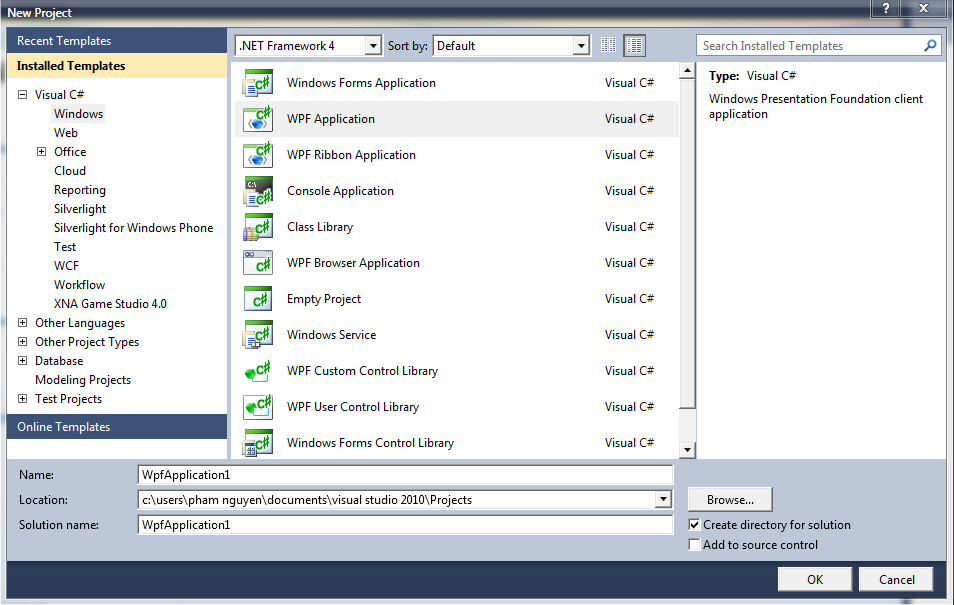
B1: Bạn mở Visual Studio 2010 lên và chọn File-> New Project-> WPF Application và đặt tên cho Project(đặt tên tuỳ ý bạn) là PhotoVeiwerDemo
B2: ta thêm các control vào MainWindow, các bạn kéo thả các Control từ toolBox vào, ở đây mình sử dụng 4 Button và một Image….
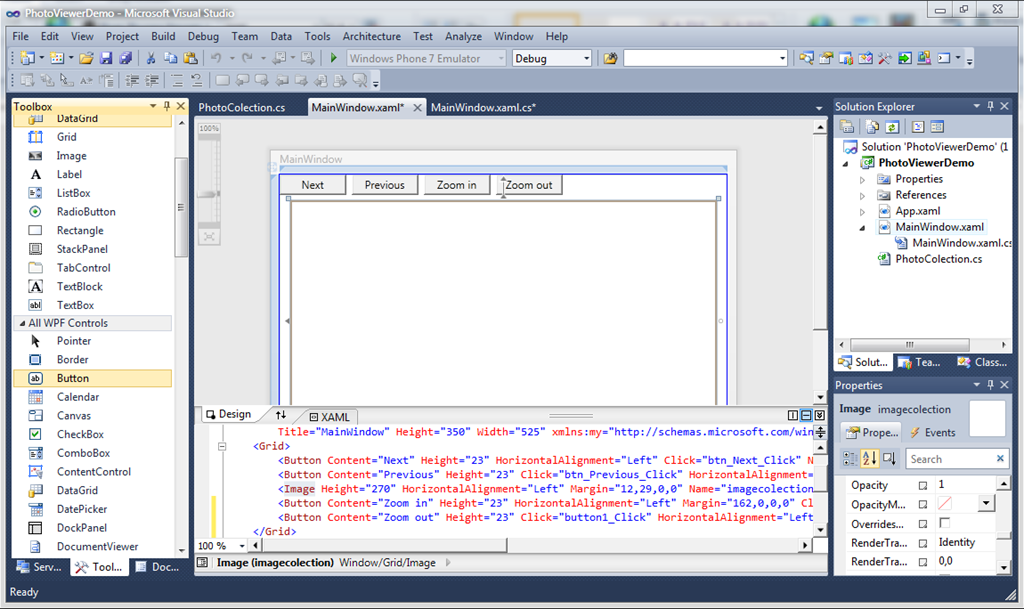
tiếp theo bạn đặt tên và tạo sự kiện cho các Control theo Hình sau :
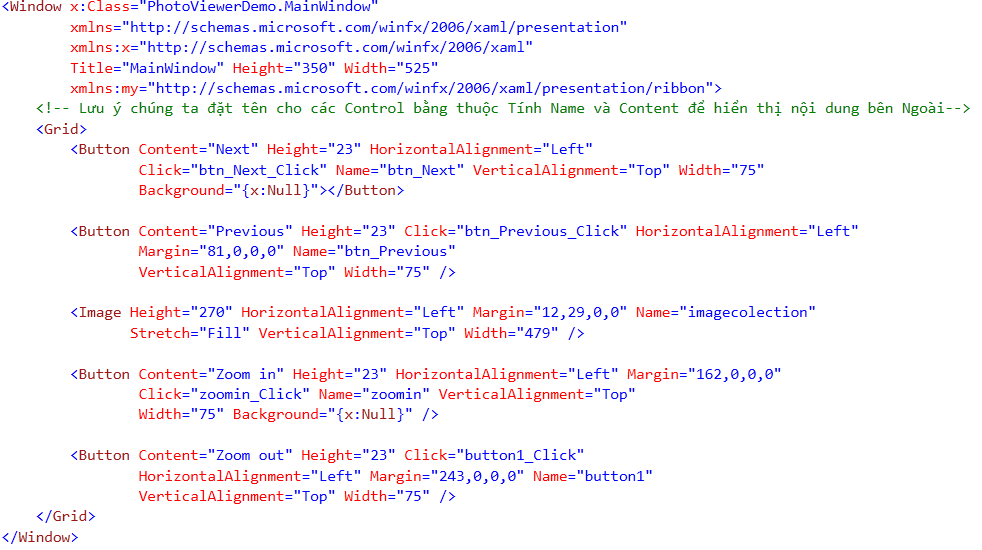
Click=”btn_Previous_Click” đoạn code này có nghĩa là bạn tạo một sự kiện click cho Button Previous. Trong WPF với các control các bạn có thể dể dàng tạo sự kiện từ Code XAML bằng cách gõ chọn tên sự kiện : Vd Click=”control_Tencontrol_Click” ……
B3: Xây dựng lớp Photocollection để lấy thông tin ảnh hiển thị và xử lý cho các control.
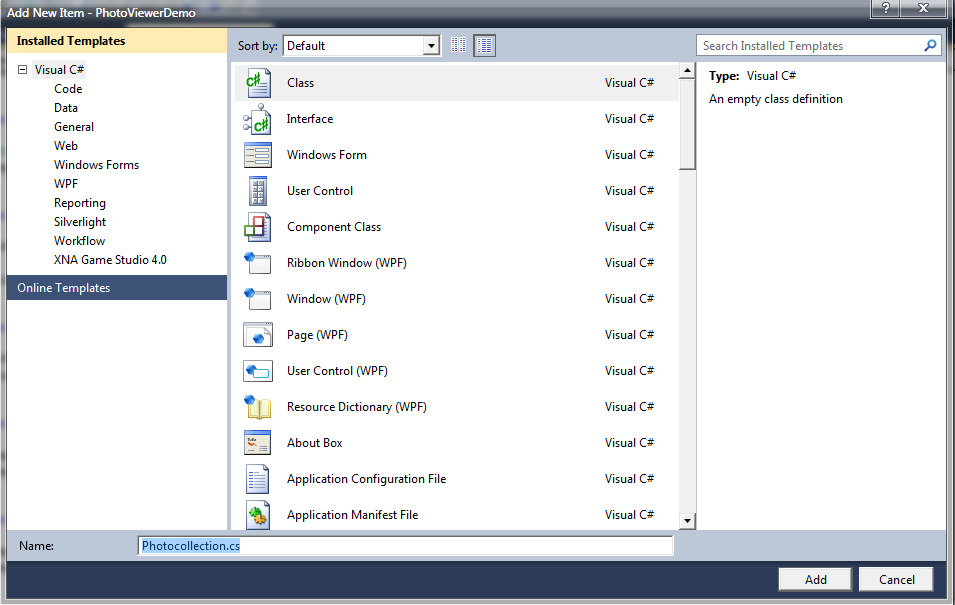
- Bạn Add và một lớp mới và đặt tên là Photocollection bằng cách gõ tổ hợp phím Ctrl+Shirft+A sau đó hộp thoại hiển thị lên, và bạn chọn Class (như hình)

- vậy là bạn đã tạo mới lớp Photocolltection bây giờ chúng ta bắt tay vào code cho lớp Photocollection .
- các bạn tên vào hai biến :
- Bây giờ xây dựng các hàm :
public int currentindex = 0; // bien lưu chỉ số index hiện thời
public string[] MyList { get; set;} mãng lưu hình
using System;
using System.Collections.Generic;
using System.Linq;
using System.Text;namespace PhotoViewerDemo
{
class PhotoColection
{
public int currentindex = 0;
public string[] MyList { get; set; }int getCurrentindex()
{
return currentindex;
}
/// <summary>
/// khoi tao, Load directory
/// </summary>
public void Init()
{
try
{// lấy tất cả hình ảnh JPG tại Folder theo Directory
MyList = System.IO.Directory.GetFiles (@”C:\Users\Public\Pictures\Sample Pictures, “*.JPG”);
}
catch (Exception)
{}
}
/// <summary>
/// lay hinh hien tai
/// </summary>
/// <returns></returns>
internal string getPeek()
{
return MyList[currentindex];
}
/// <summary>
/// Khi nhấn nút Next sẽ gọi hàm này để chuyển đến hình tiếp theo
/// </summary>
/// <returns></returns>
internal string Next()
{
currentindex++; // chuyen de hinh ke tiep
if (currentindex >= MyList.Length)// neu de hinh cuoi thi chuyen ve đầu
currentindex = 0;
return getPeek();
}
/// <summary>
/// Tương tự với nút Preveous
/// </summary>
/// <returns></returns>
internal string Pre()
{
currentindex–;
if (currentindex < 0)
currentindex = 0;
return getPeek();
}
}
}
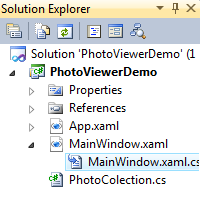
- Tiếp theo chúng ta chỉ việc gọi hàm trong các sự kiện các bạn chọn file MailWindow.XAML.cs để xử lý cho các sự kiện
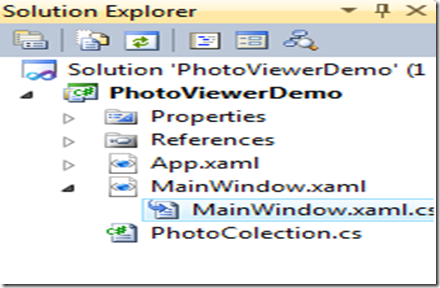
- tiếp theo là thêm lệnh xử lý cho sự kiện
using System;
using System.Collections.Generic;
using System.Linq;
using System.Text;
using System.Windows;
using System.Windows.Controls;
using System.Windows.Data;
using System.Windows.Documents;
using System.Windows.Input;
using System.Windows.Media;
using System.Windows.Media.Imaging;
using System.Windows.Navigation;
using System.Windows.Shapes;namespace PhotoViewerDemo
{
/// <summary>
/// Interaction logic for MainWindow.xaml
/// </summary>
public partial class MainWindow : Window
{
/// <summary>
/// Khởi tạo MainWindow với Kích thuốc 1000×1000
/// Đối tượng Image kích thước 500×300
/// </summary>
public MainWindow()
{
InitializeComponent();
this.Loaded += new RoutedEventHandler(MainWindow_Loaded);
this.Width = 1000;
this.Height = 1000;
imagecolection.Width = 500;
imagecolection.Height = 300;}
PhotoColection myPhoto;
/// <summary>
/// Khởi tạo một đối tượng myPhoto và gọi hàm Init() khi Load
/// </summary>
/// <param name=”sender”></param>
/// <param name=”e”></param>
void MainWindow_Loaded(object sender, RoutedEventArgs e)
{
myPhoto = new PhotoColection();
myPhoto.Init();
DisplayPicture(myPhoto.getPeek());
}
/// <summary>
/// Xây dựng hàm DisplayPicture để hiển thị hình ảnh
/// </summary>
/// <param name=”p”></param>
private void DisplayPicture(string p)
{
BitmapImage bi = new BitmapImage(new Uri(p));
imagecolection.Source = bi;
}
// gọi hàm Next để xử lý cho nút Next và hiển thị hình ảnh ra ngoài
private void btn_Next_Click(object sender, RoutedEventArgs e)
{
myPhoto.Next();
DisplayPicture(myPhoto.getPeek());
}private void btn_Previous_Click(object sender, RoutedEventArgs e)
{
myPhoto.Pre();
DisplayPicture(myPhoto.getPeek());
}
/// <summary>
/// nút Zoom in và Zoom out giúp phóng to hay thu nhỏ hình
/// </summary>
/// <param name=”sender”></param>
/// <param name=”e”></param>
private void zoomin_Click(object sender, RoutedEventArgs e)
{
imagecolection.Width += 50;
imagecolection.Height += 50;
}
private void button1_Click(object sender, RoutedEventArgs e)
{
imagecolection.Width -= 50;
imagecolection.Height -= 50;
}
}
}
B5: Nhấn F5 chạy chương trình và xem kết quả

Chúc các bạn thành công…..
 Pham Nguyen
bài viết còn 1 số lỗi chính tả đó người anh em, viết thành 1 file PDF để dành mốt training trong trg dc đó ^^
LikeLike
kakakak uhm để Nguyên sửa lổi chính tà kakak thanks Hậu hihihi
LikeLike
Hê hê gặp người quen nè :))
Ráng viết nhiều nhiều heng
LikeLike
kakka Ông anh mình đây mà ^^~ Nice to see you ^^
LikeLike
show hình đj chơi vs ng iu nữa chớ, bó tay =]]
LikeLike
Sơn em ! sao em lại pó tay chứ kakak
LikeLike
có nhất thiết phải show hình đi chơi vs ng iu lên bài lab k nhỉ? hjhj
LikeLike