I.Introduction
– Trong Windows Phone phần lớn dữ liệu sẽ được show ra ở dạng Listbox, nhưng vấn đề nếu người dùng muốn trong Listbox đó có những checkbox cho người dùng chọn nhiều item thì sao ??? trước đây chúng ta có thể tự Custumize Listbox để chèn checkbox vào đó, nhưng hiện nay đã có một Control mới gọi là MultiselectList có thể giúp chúng ta giải quyết vấn đề đó.
II.Fundamental
– Để bắt đầu bài này bạn phải chắc chắn rằng đã cài bộ Silverlight for Windows Phone toolkit November 2011 . download ở đây
– Sau khi cài xong các bạn tạo mới một Windows Phone Project, kế tiếp là right-click vào Refercences->Add thư viện Microsoft.Phone.Controls.Toolkit.dll vào . (theo đường dẩn C:\Program Files\Microsoft SDKs\Windows Phone\v7.1\Toolkit\Nov11\Bin)
– Kế tiếp là khai báo thư viện để sử dụng trong Mainpage.xaml :
1: xmlns:toolkit="clr-namespace:Microsoft.Phone.Controls;assembly=Microsoft.Phone.Controls.Toolkit"
– Bây giờ chúng ta tạo một giao diện đơn giản và gọi Multiselect trong MainPage.xaml :
1: <phone:PhoneApplicationPage
2: x:Class="MultiselectList.MainPage"
3: xmlns="http://schemas.microsoft.com/winfx/2006/xaml/presentation"
4: xmlns:x="http://schemas.microsoft.com/winfx/2006/xaml"
5: xmlns:phone="clr-namespace:Microsoft.Phone.Controls;assembly=Microsoft.Phone"
6: xmlns:shell="clr-namespace:Microsoft.Phone.Shell;assembly=Microsoft.Phone"
7: xmlns:d="http://schemas.microsoft.com/expression/blend/2008"
8: xmlns:mc="http://schemas.openxmlformats.org/markup-compatibility/2006"
9: xmlns:toolkit="clr-namespace:Microsoft.Phone.Controls;assembly=Microsoft.Phone.Controls.Toolkit"
10: mc:Ignorable="d" d:DesignWidth="480" d:DesignHeight="696"
11: FontFamily="{StaticResource PhoneFontFamilyNormal}"
12: FontSize="{StaticResource PhoneFontSizeNormal}"
13: Foreground="{StaticResource PhoneForegroundBrush}"
14: SupportedOrientations="Portrait" Orientation="Portrait"
15: shell:SystemTray.IsVisible="True">
16:
17: <!--LayoutRoot is the root grid where all page content is placed-->
18: <Grid x:Name="LayoutRoot" Background="Transparent">
19: <Grid.RowDefinitions>
20: <RowDefinition Height="Auto"/>
21: <RowDefinition Height="*"/>
22: </Grid.RowDefinitions>
23:
24: <!--TitlePanel contains the name of the application and page title-->
25: <StackPanel x:Name="TitlePanel" Grid.Row="0" Margin="12,17,0,28">
26: <TextBlock x:Name="ApplicationTitle" Text="MY APPLICATION" Style="{StaticResource PhoneTextNormalStyle}"/>
27: <TextBlock x:Name="PageTitle" Text="Multiselect List" Margin="9,-7,0,0" Style="{StaticResource PhoneTextTitle1Style}"/>
28: </StackPanel>
29:
30: <!--ContentPanel - place additional content here-->
31: <Grid x:Name="ContentPanel" Grid.Row="1" Margin="12,0,12,0">
32: <toolkit:MultiselectList Name="mslStudent">
33: <toolkit:MultiselectList.ItemTemplate>
34: <DataTemplate>
35: <StackPanel>
36: <StackPanel Orientation="Horizontal">
37: <TextBlock Text="Name: " FontSize="32" />
38: <TextBlock Text="{Binding Name}" FontSize="32"/>
39: </StackPanel>
40: <StackPanel Orientation="Horizontal">
41: <TextBlock Text="Code: " />
42: <TextBlock Text="{Binding Code}" />
43: </StackPanel>
44: </StackPanel>
45: </DataTemplate>
46: </toolkit:MultiselectList.ItemTemplate>
47: </toolkit:MultiselectList>
48: </Grid>
49: </Grid>
50:
51: <!--Sample code showing usage of ApplicationBar-->
52: <phone:PhoneApplicationPage.ApplicationBar>
53: <shell:ApplicationBar IsVisible="True" IsMenuEnabled="True">
54: <shell:ApplicationBarIconButton IconUri="/Images/check.png" Click="ApplicationBarIconButton_Click" Text="OK"/>
55: </shell:ApplicationBar>
56: </phone:PhoneApplicationPage.ApplicationBar>
57:
58: </phone:PhoneApplicationPage>
– Tiếp theo tạo một Database đơn giản :
1: public class Student
2: {
3: public String Code { get; set; }
4: public String Name { get; set; }
5: }
– Vấn đề còn lại là xử lý code behind :
1: using System;
2: using System.Collections.Generic;
3: using System.Linq;
4: using System.Net;
5: using System.Windows;
6: using System.Windows.Controls;
7: using System.Windows.Documents;
8: using System.Windows.Input;
9: using System.Windows.Media;
10: using System.Windows.Media.Animation;
11: using System.Windows.Shapes;
12: using Microsoft.Phone.Controls;
13:
14: namespace MultiselectList
15: {
16: public partial class MainPage : PhoneApplicationPage
17: {
18: List<Student> Source = new List<Student>();
19: public MainPage()
20: {
21: InitializeComponent();
22: // Tạo dữ liệu
23: Source = this.DataBase();
24: // Đổ dữ liệu vào MultiSelect List
25: mslStudent.ItemsSource = Source;
26: }
27:
28: public List<Student> DataBase()
29: {
30: List<Student> source = new List<Student>
31: {
32: new Student(){ Name = "Pham Phuong Nguyen",Code="123456789"},
33: new Student(){ Name = "Nguyen Thi Phi Diep",Code="123456789"},
34: new Student(){ Name = "Tran Chi Khang",Code="123456789"},
35: new Student(){ Name = "Chung Vinh Khang",Code="123456789"},
36: new Student(){ Name = "Nguyen Ngoc Hien",Code="123456789"},
37: new Student(){ Name = "Do Minh Phuc",Code="123456789"},
38: new Student(){ Name = "Trinh Quoc Viet",Code="123456789"},
39: };
40: return source;
41: }
42: // Sự kiện ấn nút sẽ xóa Item đã chọn
43: private void ApplicationBarIconButton_Click(object sender, EventArgs e)
44: {
45: foreach (Student student in mslStudent.SelectedItems)
46: {
47: Source.Remove(student);
48: }
49: mslStudent.ItemsSource = null;
50: mslStudent.ItemsSource = Source;
51: }
52: }
53: }
– Trong code behind phía trên các bạn làm các công việc sau :
- Đổ dữ liệu vào MultiSelectList
- Tạo sự kiên cho Button để khi Click có thể xóa những Item đã chọn .
Kết quả :
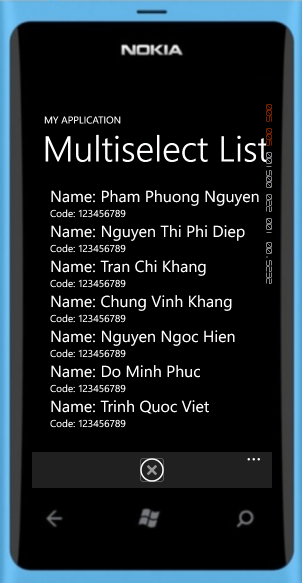

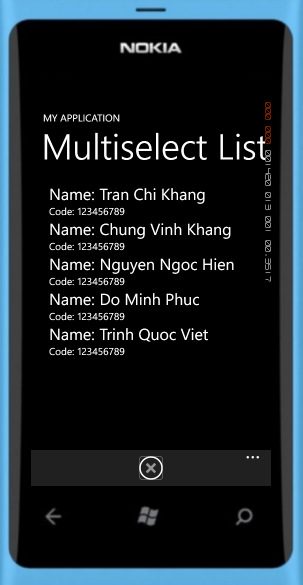
- Hy vọng bài viết này sẽ mang thông tin hữu ích đến cho các bạn !
 Pham Nguyen
Anh nguyên có thể nào hướng dẫn em cách lấy cơ sở dữ liệu từ LINQ vào trong LIST BOX trong SILVERLIGHT ko anh nguyên
LikeLike