I. Introduction
Gần đây có một số anh em hỏi mình là có cách nào select một Item trong Listbox thì Image trong item đó sẽ thể hiện ra một control khác trong page một cách nhanh chóng (dạng Master Detail). Và mình cũng có trả lời là có cách dùng XAML Binding tự động rất nhanh chóng.
Trong bài này mình xin chia sẻ về XAML Binding trong Windows Phone giúp việc Binding trên cùng một Page sẽ trở nên cực kỳ nhanh.
II. Fundamental
Trước tiên chúng ta tạo project Windows Phone, và tạo một lớp Employee:
1: public class Employee
2: {
3: public string Name { get; set; }
4: public int Age { get; set; }
5: public string ImgUrl { get; set; }
6: public string Company { get; set; }
7: }
Sau đó vào MainPage thiết kế một Listbox để Show dữ liệu :
1: <ListBox Name="lstEmployee">
2: <ListBox.ItemTemplate>
3: <DataTemplate>
4: <Grid Margin="10">
5: <Grid.ColumnDefinitions>
6: <ColumnDefinition Width="Auto" />
7: <ColumnDefinition Width="*" />
8: </Grid.ColumnDefinitions>
9: <Image Width="70" Source="{Binding ImgUrl}" Grid.Column="0"></Image>
10: <TextBlock Margin="10" VerticalAlignment="Center" Text="{Binding Name}" FontSize="30" Grid.Column="1"></TextBlock>
11: </Grid>
12: </DataTemplate>
13: </ListBox.ItemTemplate>
14: /ListBox>
Tiếp theo là vào MainPage.xaml.cs tiến hành Binding dữ liệu vào Listbox :
1: public partial class MainPage : PhoneApplicationPage
2: {
3: // Constructor
4: List<Employee> listEmployee = new List<Employee>()
5: {
6: new Employee(){Name = "Nguyen Pham",Age = 24, ImgUrl = "1.jpg",Company = "HPT VIET NAM"},
7: new Employee(){Name = "Phong Cao",Age = 30, ImgUrl = "2.jpg",Company = "NOKIA"},
8: new Employee(){Name = "Toan Huynh",Age = 35, ImgUrl = "3.jpg",Company = "MICROSOFT"},
9: new Employee(){Name = "Hung Than Ba",Age = 33, ImgUrl = "4.jpg", Company = "HPT VIET NAM"},
10: };
11: public MainPage()
12: {
13: InitializeComponent();
14: lstEmployee.ItemsSource = listEmployee;
15: }
16: }
Bây giờ khi chạy ứng dụng chúng ta sẽ được kết quả như sau :

Việc tiếp theo là chúng ta Design trong MainPage.xaml một Grid chứa một số Textblock, Image để thể hiện thông tin chi tiết, khi Selected từ Listbox và đồng thời Binding tự động các thông tin của Item vừa Select .
1: <Grid Grid.Row="0" DataContext="{Binding ElementName=lstEmployee, Path=SelectedItem}">
2: <Grid.RowDefinitions>
3: <RowDefinition Height="Auto" />
4: <RowDefinition Height="Auto" />
5: <RowDefinition Height="Auto" />
6: </Grid.RowDefinitions>
7: <Grid.ColumnDefinitions>
8: <ColumnDefinition Width="Auto"></ColumnDefinition>
9: <ColumnDefinition Width="Auto"></ColumnDefinition>
10: <ColumnDefinition Width="Auto"></ColumnDefinition>
11: <ColumnDefinition Width="Auto"></ColumnDefinition>
12: </Grid.ColumnDefinitions>
13: <Image Margin="10" Source="{Binding ImgUrl}" Grid.Row="0" Grid.Column="0" Grid.RowSpan="3"></Image>
14: <TextBlock Margin="10" Text="Tên" Grid.Column="1" Grid.Row="0"></TextBlock>
15: <TextBlock Margin="10" Text=":" Grid.Column="2" Grid.Row="0"></TextBlock>
16: <TextBlock Margin="10" Text="{Binding Name}" Grid.Column="3" Grid.Row="0"></TextBlock>
17:
18: <TextBlock Margin="10" Text="Tuổi" Grid.Column="1" Grid.Row="1"></TextBlock>
19: <TextBlock Margin="10" Text=":" Grid.Column="2" Grid.Row="1"></TextBlock>
20: <TextBlock Margin="10" Text="{Binding Age}" Grid.Column="3" Grid.Row="1"></TextBlock>
21:
22: <TextBlock Margin="10" Text="Công ty" Grid.Column="1" Grid.Row="2"></TextBlock>
23: <TextBlock Margin="10" Text=":" Grid.Column="2" Grid.Row="2"></TextBlock>
24: <TextBlock Margin="10" Text="{Binding Company}" Grid.Column="3" Grid.Row="2"></TextBlock>
25:
26: Grid>
Vậy là chúng ta có kết quả khi Select một Item rồi nhé :

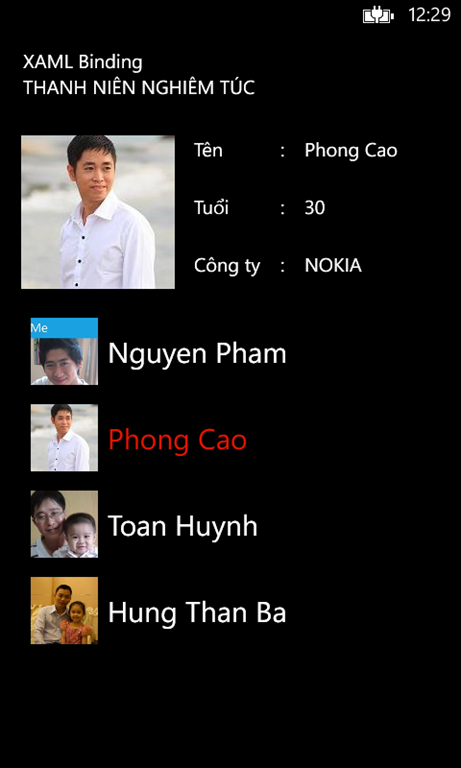

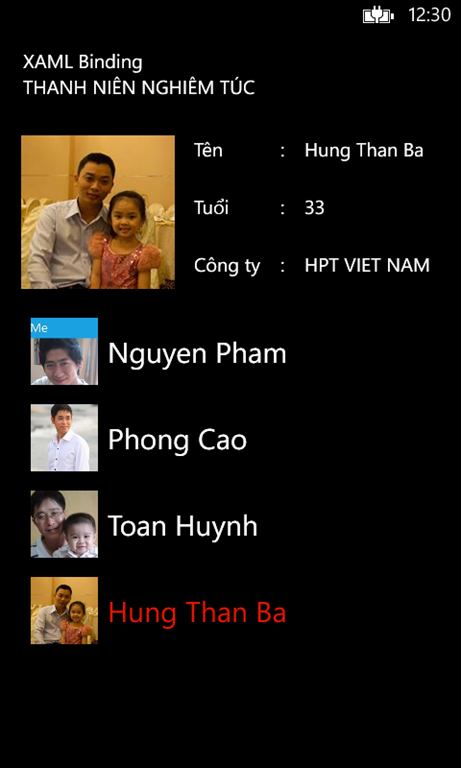
Các bạn lưu ý ở đoạn code này nhé:
DataContext="{Binding ElementName=lstEmployee, Path=SelectedItem}"
Đoạn này làm nhiệm vụ chỉ định Item sẽ được chọn từ Listbox ra để Binding cho các phần tử giao diện khác
Lưu ý :
Thuộc tính ElementName chỉ định tên Listbox mà chúng ta cần lấy dữ liệu ra.
Path=SelectedItem có nghĩa là lấy dữ liệu khi Listbox đã Selected một Item nào đó.
Hy vọng bài viết này sẽ hữu ích với các bạn.
 Pham Nguyen